jeudi 14 avril 2011

Professional Blog Design Service Expands With Exciting New Offers

Over the last year i have been offering my services to work on your Blogs.The response has been amazing and i have had a lot of fun working on Blogs with Bloggers from all around the world.It has also been great to get such positive feedback and lets be honest I'm getting paid and an extra few bucks in the pocket is always nice.I have took on all sorts of projects from quick customizations to full blog makeovers and now i am excited to offer even more.

From today i am expanding the services offered to include some new and exciting options.

I have in the past had to sometimes refuse some work due to a simple lack of time but i have acquired the help of my Good Friend, Fellow Blogger and Design Genius Dasari Harish.Most of you will have seen the Awesome post he wrote on Spice Up Your Blog recently - Animated Flying Twitter Bird For Blogger.

Then There Were Two


I have been working with Harish on a number of things over the last few months and now together we can work to really Spice Up Your Blogs.Harish like myself specializes in Blogger design and he is also an Expert in all the latest web design coding including jQuery, Css3, Html5 and All the stuff that makes your blog beautiful without slowing it down.

Among other things have worked on the very advanced comment section you can now see on Spice Up Your Blog (Details On How You Can Get It Below) and the cool effect you see on the BuySellAdds banners at the top of the sidebar and header here (Fellow BSA Users Can Look Out For Upcoming Tutorial On This).

With Harish on board we can now take on almost any project and we have a few things in mind also.First as i said i have received amazing feedback over the last year here are a few samples..

What They Said (Thanks Guys) !

"...Service was quick and efficient...Definitely recommended - Annabel @ DizzyFunctional..."

"Paul, The work you did on my Blogger site is stunning....I would have scrapped the whole site if it wasn't for you. Now I have a professional, clean and functional blog - Lisa Drubec @ The Friendly Blogger "

"With your quick replies to emails and excellent explanations the process was very smooth even though we are on different sides of the globe - David @ My VST Charts "

"You did so quickly, and in a professional and creative manner. I felt you really understood what I was looking for. I would recommend you to anyone looking to "Spice Up" their blog - Emily Hanlon @ Fiction Writing, The Passionate Journey"

"When I first contacted Paul to redesign my blog, I gave him very specific instructions on the content and overall appearance.Not only did he follow through on my specifications, but he also added in his own touch on things I hadn't even considered that improved the quality of my site- Matty @ Matty Thoughts"

"I was having some major issues with blogger and you fixed those in a very short time. Then I decided to totally redo the blog and I love it! You were extremely fast and very helpful. Your prices are wonderful too - Joan @ Joan's Gardens"

What They Wrote (Thanks Again Guys)


New Look On Joan's Gardens

Blogs To Help You Blog Better

Need A Website Makeover ?

New Services And Specials


I am now confident there is nothing within reason (We cant get blogs to make coffee) we cant provide, So Go crazy or go simple or let us get creative.

Here are two new services starting with the much commented on comment section just added here on Spice Up Your blog.

Special - The Ultimate Blogger Comments Section ! : Have an Awesome comments section on your blog.Features include - Wordpress Advanced Style with Comment Avatars, Color coded Name and date line, Authors Comments (Comments You Write) use different color name and date line, different shade background and Animated Admin Sticker (Can use different Image such as signature).Default image (You Choose) For Commenter's with no avatar, Reply Button Or Link Is Optional.See them in action here - Ultimate Blogger Comments Section.5 Styles To Choose From And You choose the colors and images we create and install.

Wordpress Template Conversion - Seen a Wordpress template you just Love and want to use it on Your Blogger Blog ? No Problem, we will convert the template to Blogger and Upload it onto your blog.This will be a top quality job, many Wordpress conversions are rushed half hearted jobs that do not work properly on Blogger.

Full Pack - This is a complete Blog Makeover Not only Design, Template, SEO, Social Media, Gadgets and more but also advice on best practice for your particular blog.The work does not stop until your happy and i am on hand even after the job has finished to answer any questions.Resources such as screen capture video are used to communicate and make the process as easy as possible.

You can see more offers and a price list on the Hire Us Page and remember these are just suggestions, tell us what YOU want.

Professional Blogger Design - Hire Us Page

Comments And Questions Below.

Libellés : , , ,

dimanche 27 mars 2011

Beautiful Animated Hover Effect Captions For Images On Blogger

Css3 Blogger Tutorial
In this post we have not only an amazing effect you can add to the images you use in your blog posts but it's amazingly simple and amazingly fast so wont slow down you page load time.The effect is similar to what you will see on many Featured Posts Gadgets, when you hover your cursor over the image a caption scrolls up from the bottom with your selected text.

So, you can have the title of the image, a description, date taken, credit or anything you like.The code we will use has No Javascript this ensures it will load fast and as i said not slow down your blog.The code is all Css3 (Don't Worry I Will Keep It Simple) so you have a flowing and transparent effect with the caption.There is also a stylish Shadow edge around the image On-Hover.
Click Here To View Full Post >>

Libellés : , ,

mercredi 2 mars 2011

Blogger Stylish Hover Effect Thumbnails Only Related Posts

Blogger Related Posts GadgetBack in December i published a post showing you a great Related Posts with thumbnails gadget.That gadget displayed a selected number of related posts generated using labels, the posts are displayed using a thumbnail with the title of the post below.That post has been one of the most popular on Spice Up Your Blog over the last few months and today i have another Related Posts With Thumbnails Gadget but with a very cool feature.

I found this gadget in a template i published on my Templates Blog BestBloggerTemplates.Net and knew it would be popular.This Related Posts gadget does not display the title of the post below the Thumbnail but rather has a Hover Effect to display the post title.So below your posts will be just the thumbnails but when you hover your cursor over them the thumbnail is replaced by the title.

Hmmm not easy to explain in text so take a look at the screenshots and live demo below.
Click Here To View Full Post >>

Libellés : , ,

lundi 31 janvier 2011

Why You Shouldn't Sell Text Links On Your Blog

dont sell text links
As your blog grows and becomes more popular, along with the benefits of increased traffic and depending on the nature of you blog increased AdSense earnings or sales comes some dilemmas.People will want to try take advantage of your success in a number of ways.One way unscrupulous marketers may try to take advantage of an Unwary blogger is an approach with an interest in buying a text link within a post.

A text link or hyper link is the name given to links you probably add to all your posts.If you write a post about Spice Up Your Blog you might add a link to Spice Up Your Blog within the post.These links help the site you link to in a number of ways, as we have previously covered Google follow links so if you add a link to this blog Google will follow that link and crawl this blog.Google also use links to determine the importance of a site, the more links Google find to Spice Up Your Blog the more importance they credit to it, basic SEO.
Click Here To View Full Post >>

Libellés : , ,

vendredi 7 janvier 2011

Using SEO Keywords For More Google Search Traffic

keywords seo bloggerIn some of the more recent posts i have been looking at Search Engine Optimization (SEO) and making your blog better equipped for Search Engines.Google and the other leading search engines want to find and index your blog and have become very advanced at their methods but there is lots you can do to help them help you.As i mentioned before many of the blogs i visit are very poorly set up for SEO.I'm not talking about any advanced techie stuff that could go straight over your head but just basic steps anyone can take.

When you first look into Search Engine Optimization one of the terms you will constantly meet is 'Key Words'.Key Words are something all bloggers should get to grips with and try to understand.Implementing key words into your blog can have a huge effect in the performance of your blog on Google and other search engines.This also rings true when it comes to the performance of individual posts.Explaining Keywords without putting you to sleep can prove hard, the first draft of this post read like a book so here is the shortened version !

So lets start with a simple question.

What Are Keywords ?


Simply Speaking Keywords are words people type into search engines when they want to find something.

If i want a new laptop i might go to Google and type "Cheap Laptops" this is a keyword.Or if i want to improve my typing to speed up my blogging i would type "Improve My Typing Skills" this is also a keyword.

You will notice that i called each a keyword even though there are a number of words.This is just the term used, although "Improve My Typing Skills" has four words it is generally known as a single keyword.You will also hear it referred to as a "key phrase" which i think makes more sense but then i don't make the rules.

So your job is to find keywords related to your blog and individual posts that people search for.However while it would be great to rank on the first page of Google for the main keywords related to your blog the competition will be huge.It is almost imposable to make your health blog rank high for "health tips", or make your cookery blog rank high for "cookery tips" and so on.The competition for the most popular keywords is just too fierce.

Long Tail Keywords


This is where long tail keywords come into play.Long Tail keywords are longer keywords that are not as popular but are also not as competitive.Your cookery blog cold rank first for "Simple Sunday Lunch Cookery Tips", or your health blog could rank first for "New Alternative Cures For Teen Acne".

If you can find good long tail keywords related to your blog you can generate great search traffic with little competition.

Keyword Tools


You may be thinking how do i know what keywords are popular ? Well there are a number of tools that can help.Tools like the Google Keyword generator will generate a list of keywords that people have been searching for.When you type in a Popular keyword such as Cheap Laptops they will show you related long tail keywords and how popular the are.

Another neat tool is Word tracker, it works similar to the Google keyword tool.The free version will quickly generate pages of keyword suggestions.

Adding Keywords To Your Blog


When you write a post you add the keywords you generated.It is important the keywords fit with the content and are not 'Stuffed' in.Try to add the chosen keywords a few times depending on the length of the post in question.Now, it is also great if you can add your keyword or parts of the keyword to the title of the post.

If this seems like a bit too much work you can just keep keywords in mind as you blog.Simply adding some level of keywords to your posts will have a positive effect.So the next post you write if you want research the keywords you use or add some you think will work, make sure you help Google and other Search Engines help you ! Check out more of our Blogger SEO posts.

Drop Your Comments, Views And Questions Below.

Libellés : ,

mercredi 29 décembre 2010

Best SEO Tips And 150 Free Backlinks Every Day

You may be surprised to learn that i read a lot of blogs that are not tech or design related.I often find myself on personal blogs, cookery blogs, activity blogs and all sorts of general fun well written blogs.There are now millions of Blogs online and among the rubbish, spam and uncountable "Tried it for 3 months and quit" efforts are some real gems.I often follow a link from a comment on Spice Up Your Blog to see the blogs of people that leave a comment or if I'm really bored and have 10 minutes to spare i have found myself clicking the Blogger 'Next Blog' link in the navbar.As i adventure through these blogs the one thing that Screams Out is how poorly they are set up for SEO (Search Engine Optimization).Some of the best blogs i have found are so poorly set up for SEO that you could put Sherlock Holmes on the back of the Google Spider and he wouldn't find them.

I'm currently working on a Complete Blogger Ebook that i hope to release in 2011 and among the content will be lots of SEO advice.But i have already published many tips to help get your blog performing much much better on Google and the other search engines.In this post i will point you in the direction of these posts and also share you will a service i have been using for a few months that automatically generates back links to your blog Absolutely Free.

Backlinks are vital when it comes to SEO, every link to your blog is seen almost like a recommendation in the eyes of Google.I go deeper into this subject in possibly my most in dept post on SEO - Use Do Follow Blogs For Back Links And Page Rank.Other posts you Must check out to improve your blog in search include :

- Add Meta Tags And Description To Your Blog

- Submit Two Sitemaps Of Your Blog To Google

- Submit A Sitemap To Yahoo, Bing And Ask Search Engines


You can find more SEO tips in our SEO Tips Category Pages.I plan on focusing on more SEO tips in the upcoming posts.Now to creating a genuine 150 links to your blog every day.

Free Automatic Backlinks With ImAutomator


Note this site is no longer free, as of Janurary 2012 there is a minimum fee of $2.99.In my opinion this was a great free service but i personally would not pay for it.Thats just my opinion it's up to you.

IMautomator is a Bookmark submission tool that automatically submits your blog posts to various Bookmarking websites.With a free account you can add 10 Links every day, these ten links are submitted to 15 Bookmark directory's (10x15=150 easy math even for me).I have personally used the service and it works a treat.The sites it bookmarks on are not the most popular or highest PR but it takes seconds and is totally free.There is a paid option but you never need to avail of this.

-Follow this link (Not a referral link) to Imautomator and set up your free account.

-Once you have verified your account you can get to work.Log in and via the Bookmark submitter you can add links to be submitted (See Video Below).

What Should You Submit ?

First up there is the obvious links, your blogs home page and your posts with ten a day you could start adding your archive.Why not add you label pages ? Every label you have on your blog has it's own page.Basically you can add any URL connected to your blog including Bookmarking Bookmarks ! If you Bookmark your blog on Digg add the Digg URL.You should also take a look at the Top 20 Do Follow Bookmarking Websites.

That's it look out for more SEO tips and the Blogger Ebook (Don't Hold Your Breath Until About Mid Summer).Remember no matter how intelligent Google crawlers become you will always have to help them help you !

ImAutomation Intro Video


Check out more of our Blogger SEO posts.

Add Your Comments, Views And Questions Below.

Libellés : , ,

dimanche 19 décembre 2010

New Blogger Related Posts With Thumbnails Below All Posts

We all know the importance of Displaying Related Posts below each post on your blog.Displaying a list of Related Posts not only keeps readers on your blog clicking through your archive but they are also crawled by search engines.But to get readers clicking through the related posts you need them to be eye catching and that's where the related posts with thumbnails works so well.The related posts with thumbnails lists a selected number of posts and also grabs an image from each posts to display.The gadget we have in this post is similar to the popular Link Within Related posts but with some great extra features and options.

I have re sized the thumbnail and title so you can display more posts.Link Within Limits you to 5 posts with this gadget you can show as many as you like.This related posts gadget displays related posts using the labels, so it will list posts with the same labels as the posts it is below.You can add some extra customizations to this gadget and i will list them below the tutorial.

Screenshot 

blogger related posts

Live Demo - You can see this gadget below all posts on this blog.

Add The new Blogger Related Posts To Your Blog


Step 1. In your Blogger Dashboard Click > Design > Edit Html > Tick The Expand Widget Templates Box


Step 2. Find the following piece of code in your blogs Html : (Click Ctrl and F for a search bar to help find the code - More Info)


Step 3. Copy And Paste The Following Code Directly Above / Before


Best Blogger Gadgets


Everything in the right place ? Cool save your template and check out your Blogger Related Posts With Thumbnails.Make sure to check out more of our Blogger Gadgets and Design Tips.

Leave Your Comments, Views And Questions Below.

Libellés : , , ,

jeudi 16 décembre 2010

New Script Add Images And Colored Text To Blogger Comments

images in blogger commentsIn this post Macro Raman shares a fantastic script he created that allows people for the first time to add images, different color text and scrolling text to comments on Blogger.Here on Spice Up Your Blog we have made great strides in improving the Blogger comments with tricks like Adding Replies To Blogger Comments and Adding Smileys and Emoticons to Blogger Comments.This script will bring the comments on your blog to another level allowing readers to use different colors, share images and just for fun use Marquee scrolling text when they comment.

Live Demo - Click To See The Demo : Blogger Comment Images And Colors

Macro writes his blog in Tamil but has done a great job in Writing this post in English to share his new script with Spice Up Your Blog Readers.I will summarise the steps and show you how to add a message above the comment form to let readers know of the options below Macro's post.

Note - This post and script can not be republished on other blogs by request of Author, if you want to share this you may link to this post.

New Blogger Scrip Display Images And Colors In Comments


Guest Post - By Macro Raman

We do see many of them chats with shorten words, symbols, smileys and more to tell in short form. Now its a time of zero typing where image speaks a lot more than words. Let us imagine there is a colorful animated new year greeting post where you like to greet the author the same way.You know greeting pictures speak Louder than words,so you too created a splendor greeting picture for the blog author but the blog restrict you to post images. Then?

Of course, Blogger.com restrict the readers to post images in their comments column.We know It is possible to posts picture comment in wordpress blogs by adding just tags. then what is the solution for the blogger's blogspot? Here I introduce new javascript which try to minimize the maximum extend of this restriction. and be aware of it that it doesn't work in script disabled browsers.

How to add image?

This is just simple, you need to start with [im] and end with [/im] place your image address in between of it.Like This :

[im]http://domain.com/folder/sample.jpg[/im]


How to install?

This is the code

Best Blogger Tips

Important - I have set the posts per page at 10 (In Red Above), you can increase or decrease this however you must match this in your Blogger settings.So once you save the gadget go to your Blogger settings > Formatting > Set the posts per page to the same as the number in your page navigation code (See Image Below).Basically if you leave the number at 10 make sure your posts per page setting is 10, if you change to 8 make sure your posts per page is 8 and so on..


Step 3. OK just to keep your design page in proper order i recommend you drag and drop the gadget below the posts section.

That's your new numbered page navigation widget in place below your posts, if your comfortable with changing the code you can change the colors used.We have lots more Blogger Widgets and Blog Design Posts for you to check out.

Drop Your Comments, Views And Questions Below.

Libellés : , , ,

mardi 9 novembre 2010

Open Google AdSense Custom Search Results In Blogger Blogs

open custom search results blogger The Google custom search bar returns in my opinion the most accurate results for your blog.The search bar itself is compact and stylish and can be easily added to your blog.For those of you not familiar with the Google Custom search bar it basically looks the same as the search on the Google home page and when added to your blog returns results in the same format.The big difference is the results returned are All posts on Your Blog.This is a great way to let the readers of your blog quickly find exactly what they are looking for.The Google custom search bar has been vastly improved over the years and is still constantly getting better but i have always had one Big Issue with using Google Custom search on my Blogger blogs.

One of the great options you are offered when setting up a Google custom search box for your blog is to open the results within your site or blog.So instead of readers leaving your blog and going to a separate Google page to see the results of their search they will see the results on a page that is actually part of your blog.This has a number of benefits here are three of the main ones :

- It's never good to send readers away from your blog and the separate Google page does not have a direct link back to your homepage.
- As they stay in your blog it increases your views and the search results page will be crawled by Google helping SEO.
- Displaying the results within your blog looks much more professional.

That's Fantastic but because of the minimum requirements set by Google such as minimum width of search results pages Blogger users cant actually choose the option to display the Search results on within their blog...Until Now !

In this post i will show you how you can create a totally unique page on your blog and display the results from Google Custom search on that page.

Important Update - Since this post i have created an easier way to display the results in your blog.You can still create a unique page as shown here but for the new method go to this post - Easily Open AdSense For Search Results In Blogger

Demo 1 - Go to our demo blog and use the search bar in the header to see the results page :

Demo Click Here

Cool Eh ? - But that's just a plain page, take a look at how you can customize the page :

Demo 2 - I have fully customized the search results page for Spice Up Your Blog, use any of the search bars on this log to see the result:

Click Here To Open Spice Up Your Blog In A New Window

Extra Cool eh ? - You can see more results by using any of the search bars on this blog.

There are a number of step involved to get your search bar and search results page.

- You need to create a new Google custom search bar for your blog.Only AdSense members have the option to Embed results in their Blog if you have not yet joined AdSense apply here - Google AdSense.

- You need to create the page for the results and add code to your template to customize the page.

Don't worry i will walk you through all the steps.So lets get stared, make sure to back up your template and take your time.

Open Google Custom Search Results In Your Blog

Create The Page For The Google Search Results

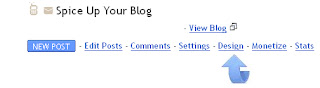
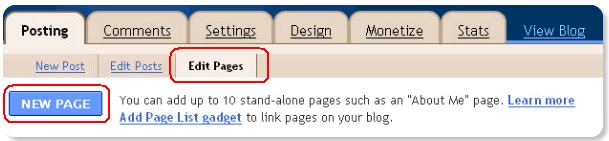
Step 1. First we will create the page that displays your search results.From your Blogger dashboard click 'New Post' or 'Edit Posts' > and in the top menu click 'Edit Pages' > Now Click 'New Page'.


Step 2. Add A Title Like 'Search Results' to your page but leave the actual content area totally blank and publish the page.You will now be asked how you would like the page to appear choose 'No Gadget - Link To Pages Manually' and publish.OK you will now be presented with the option to view the page, click that link.

Step 3. For the next step we need the URL of the blank page you just created so copy the URL from the address bar and keep it or you can go back for it when needed.

That's the first part covered We will Create the search bar In your AdSense account.

Get The Search Bar Code From AdSense

Many of you will have created an AdSense custom search bar previously and it's a fairly straight forward process, this time we just have to chose to use the 'Open Results In My Own Site' Option.Lets have a look :

1. Log Into AdSense

2. Click the 'Get Ads' option the the top menu > Tick 'AdSense For Search' and continue.

3. AdSense walk you through the steps of creating the Search Bar:

- In the third page you will see the 'Opening of search results page' section > Choose 'Open Results In My Own Site.

- Below this is 'Enter URL where search results will be displayed' > Enter the URL of the page you created above and just leave the width at 800px then scroll down.

- You will be asked to choose the style of the search results page > I have set up the page to work with the default pallet so leave this and move on.

- The next page requires you to accept the AdSense Terms and name your search bar (The name of the bar is only to help locate it in your AdSense account and is not important).Click 'Submit and get Code'.

- Usually you would now be presented with one snippet of code for the search bar this time you will get two.The first snippet is for the search bar and the second is for the search results page.Save both pieces of code or keep the page open as you will need both later.

OK back to your Blogger Dashboard (Are you keeping up)

Add The Search Page Code To Your Template

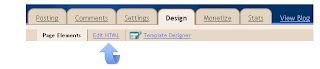
Step 1. In your dashboard click 'Design' > 'Edit Html'


Step 2. Find the following piece of code in your blogs Html :
(Click Ctrl and F for a search bar to help find the code - More Info)


Step 3. Copy and paste the following code Directly Below / Under


Step 4. Don't save you template we have the final step to complete - Find the following piece of code in your blogs Html :
(Click Ctrl and F for a search bar to help find the code - More Info)


Step 5. Replace with the code below :


Important - We now need to add a few things to the code.

1.Where you see URL-OF-YOUR-PAGE( Twice)  in red - Replace with the URL of the blank page you created in step 1.

2. Where You See YOUR-BLOGS-TITLE in blue - Replace with the title of your blog (You could also use 'Search Results' etc..)

3. Where you see URL-OF-YOUR-HOME-PAGE (Twice) - Replace with the URL of your blogs home page.

4. Where you see - Replace with the second section of code provided by Google AdSense.

Add The Search Bar  - OK if you took your time and sure all the code is in the right place save your template.Now add the code for the actual search bar you your blog > Just head to your Design page > Add A Gadget > Choose Html/Javascript > Paster in your search bar code and save.

That's it go test out your search bar - Very Important - While you can test your new search bar Do Not click the ads on the search results page !

As you have seen by the results page for Spice Up Your Blog you can add lost more customizations to the code.If you need more help drop a comment below.There are a lot of steps involved and it has been a hard tutorial to write but if you take your time I'm sure you will have no problems.

Make sure to check out more Helpful Posts On AdSense and our post showing you how to use the same styling to create a Totally Unique Table Of Content Site Map (Check out my Site map from the top menu for a demo).

Drop Your Comments, Views And Questions Below.

Libellés : , , , ,

mardi 2 novembre 2010

Totally Unique Table Of Content Sitemap Page For Blogger

The addition of Pages on Blogger was a long awaited feature allowing Bloggers to create stand alone pages such as Contact and About pages.I know many of you will have created pages on your blog but did you know that unlike normal posts, Blogger Pages can be fully customized ? The Pages you add to your blog are the same format as gadgets you add to your sidebar making them an open book when it comes to customization.In this post i will show you how to create an awesome Table Of Content Or User Sitemap page that will look like it's on a totally different site ! Take a look at the Table Of Content page i created for for this blog - Spice Up Your Blog Sitemap.

Cool eh..Although that page looks totally different to the rest of the Blog it is a static page within this Blog.And It's much easier to create than you may think, Credit goes to BloggerzBible for the Table of content script and Css.A table of content page is a Great Way For readers to navigate your archive and very search engine friendly, all your posts in one place for Google to Crawl has to be good.So lets add a cool and very unique Table Of Content Page to your blog.

Use Just The Table Of Content - If you don't want the unique page design or are having trouble creating the page you can just have the table of content on a normal Blogger page.At the bottom of the post i will quickly show you how to add the table of content sitemap i use to a regular page which is much easier.

Create Your Unique Table Of Content Page

Step 1. First we will create the page that displays your table of content.From your Blogger dashboard click 'New Post' or 'Edit Posts' > and in the top menu click 'Edit Pages' > Now Click 'New Page'.

create page blogger

Step 2. Add A Title Like 'Table Of Content' to your page but leave the actual content area totally blank and publish the page.You will now be asked how you would like the page to appear if you have used pages before choose your preferred format if not just choose 'No Gadget - Link To Pages Manually' and publish.OK you will now be presented with the option to view the page, click that link.

Step 3. For the next step we need to URL of the blank page you just created so copy the URL from the address bar and keep it or you can go back for it when needed.

That's the first part covered We will now add the Css to design the page and the script to create the Table Of Content.So make your way back to your Blogger dashboard.

Step 1. In your dashboard click 'Design' > 'Edit Html'


Step 2. Find the following piece of code in your blogs Html :
(Click Ctrl and F for a search bar to help find the code - More Info)


Step 3. Copy and paste the following code Directly Below / Under


Step 4. Don't save you template we have the final step to complete - Find the following piece of code in your blogs Html :
(Click Ctrl and F for a search bar to help find the code - More Info)


Step 5. Replace with the code below :


TITLE-OF-PAGE-HERE


Best Blogger Tips
Home Page