dimanche 8 juillet 2012

Add Pinterest And Other Bookmarking Buttons To Images In Your Blogger Posts

On Spice Up Your Blog I have tutorials for lots of Social Bookmarking gadgets.We have posts showing how to add Social Bookmarking gadgets at the top of your posts, below your posts, scrolling beside your posts and in fixed positions.These are of course for readers to bookmark the content in your posts.But with so many Blogs having a focus on Images how about having the bookmarking icons appear on the actual images you have on your blog ?

People love to share images and the success of Pinterest has served to confirm this point.So in this post I have a tutorial to add social bookmarking icons from AddThis to your images, the icons will only appear when readers hover over the image and they appear with an overlay.

The buttons we are adding to the images are for Twitter, Facebook, Print, Pinterest, Google + and the Add This button which will cover all other services.


Check out the demo below then follow the tutorial.
Click Here To View Full Post >>

Libellés : , ,

lundi 2 juillet 2012

Let Readers Share Your Blog Posts To Mobile Phones Via Text Message

MoShare LogoWe all have buttons to share our blogs on the main social networks, readers can easily Tweet, Like and pin posts to their followers.However MoShare has taken a differant angle to sharing content, MoShare is a Mobile Sharing service which allows users to send online content to their friends Mobile Phones.When you add the MoShare button to your blog readers can click the button add their Cell phone / Mobile Phone number, the number of friends they want to send the content to and send.With MoShare you can share Images, Videos and of course Blog Posts via text and it works with all types of devices.

Below I will show you how to add the MoShare button to Wordpress, Blogger and Tumblr blogs.First take a look at the videos below for more on How It Works and Information for publishers.

What Is MoShare

Click Here To View Full Post >>

Libellés : ,

dimanche 27 mai 2012

Animated Sassy Social Bookmark Gadget For Blogger

Animated Sassy Bookmarks Widget For Blogger Blogs
I know how much you all like social bookmarking gadgets and widgets especially unique gadgets that can catch the eye of readers and get them bookmarking your blog.Today I have a very cool social bookmarking gadget with a stylish animated effect.With the Sassy bookmarks gadget a basic share button is placed in the corner of your blog, then on hover 6 icons for the main social bookmarking websites appear in a semicircle.The buttons that appear are for Pinterest, Google+, Facebook, Twitter, Tumblr and Email.Below we have a live demo then check out the tutorial to add the Sassy Bookmarks to Blogger.

View Demo Button

Add The Animated Sassy Bookmarking Gadget To Your Blog

Click Here To View Full Post >>

Libellés : , ,

mardi 15 mai 2012

Blogger jQuery Scrolling Social Bookmarking Bar On Posts

Bookmark Bar Blogger Screenshot
The most requested tutorial over the last few months has been for the scrolling share buttons that sit alongside posts and scroll down the page with the reader.This gadget is popular on all the top blogs and really does help increase the number of times your posts get shared on Twitter, Facebook and other social networks.Using jQuery we attach a bar to the side of your blog posts with bookmarking buttons, as the page scrolls the bar neatly follows giving readers the option to share at any time.The gadget I have been using for the past few months and I share with you today has the following options : Twitter Share, Facebook Like, Stumble Upon, Google+, Pinterest Pin It and a Rss Feed Icon.Wordpress users can try out the Wordpress Share Bar listed in this post.

Video Tutorial - For extra help at the end of the post I have a video tutorial displaying the steps.

At the moment this gadget is in use here so you should be able to see it, you can also see another demo below.

View Demo Button

As this is an advanced gadget there are 9 steps to add it to your blog so more than ever its important to back up your template first in case of mistakes, then take your time and you should have no problems.

Add The Sticky Scroll Bar To Blogger

Click Here To View Full Post >>

Libellés : , , ,

mardi 3 avril 2012

Cool Fixed Position Slide Open Egg Social Bookmarking Gadget For Blogger

A few weeks ago i published "Add An Awesome Fixed Position Slide Open Heart Bookmarking Gadget To Blogger".In this post we have the same social bookmarking gadget but this time it will not be shaped as a heart but instead an ovel egg shape.The share egg sits in the bottom corner of your blog and remains fixed as the reader scrolls the page.On hover the egg slides open to reveal bookmarking buttons for your readers to share posts on Facebook, Twitter, Google +, Blogger, LinkedIn, Stumble Upon, Email and the Share This Icon Offers hundreds more bookmarking choices.This is a great gadget to get the attention of your readers and have them bookmarking your posts.I have the tutorial to add the gadget to your Blogger blog below but first check out the screenshot and live demo.

Share Bookmarking Gadget Blogger

View Demo Button

Add The Share This Egg To Your Blog

Click Here To View Full Post >>

Libellés : , ,

mercredi 7 mars 2012

Awesome Slide Heart Shape Bookmarking Gadget For Blogger

Blogger Bookmarking Gadget
In this post i want to show you a cool new way to have visitors sharing your blog posts.Share This has always been my Bookmark tool of choice and recently they added a cool new interactive Bookmarking gadget.The gadget in question is a love heart with the share this logo and on hover the heart splits to reveal a selection of bookmarking buttons.It looks awesome and the slide effect is very cool while still being practical.When the heart opens it reveals icons for Facebook, Twitter, Pinterest, LinkedIn, Stumble Upon, Email and the Share This Icon Offers hundreds more bookmarking choices.I think this gadget fixed in the corner of the page on your blog will grab the attention of visitors and generate lots more shares.So below is a tutorial showing you just how to do that, first check out the live demo.

View Demo Button

Add The Split Heart Bookmarking Gadget Top Your Blog

Click Here To View Full Post >>

Libellés : , ,

mercredi 1 février 2012

Shareaholic jQuery Slide Bookmarking Gadget With Tooltips And Counters For Blogger And Wordpress

jQuery Bookmarking Social Gadget With Tooltips And Counters For Blogger
Over the years on Spice Up Your Blog i have found Social Bookmarking gadgets to be amongst the most popular posts.Whats more the most popular Bookmarking gadgets have been from the "Sharing Is Sexy" series.Back in May 2011 we published a post with The Awesome Complete Animated Sexy Social Bookmarks V3 For Blogger, that post really did cover all options.Today i want to give you something similar but with some cool extras.The Shareaholic bookmarking widget still has the "Drop Down" and "Slide Up" features but also features tool tips and counters showing how many times your posts were shared.Take a look at the demo and screenshot below (for the demo scroll to the foot of the post on the test blog).


View Demo Button
Click Here To View Full Post >>

Libellés : , , , , ,

samedi 29 octobre 2011

New Ready To Use Rss And Social Icons For Your Blog

In this post i have a brand new set of stylish icons you can use on your blog for readers to subscribe and follow you on social platforms.I really liked the look of this icon set and it includes an icon for Google + (Plus) you can use for people to check out and follow you on Google's new social network.In total i have four icons here for Facebook, Twitter, Google Plus and your Rss Feed.However the complete set has 24 icons for other sites including YouTube, LinkedIn and Stumble Upon, the complete set can be found on Social Icon Studio.

Live Preview


Click Here To View Full Post >>

Libellés : , ,

mercredi 6 juillet 2011

A Strange Fix For Missing Google Plus One Buttons

Fix The Google Plus One ButtonIt's been a few weeks since the launch of Google Plus One and the Plus One Button.I'm sure many of you like me jumped on board and added the Plus One sharing or recommendation button to your blogs.I had it in a few positions and all my posts were been plus one'd (Thanks) then bang it's gone ? The script is in the head section of the template, the button code is were it should be but no sign of the button.I searched online for a solution and just found more similar questions "Were is the plus one button ?", "My plus one button is gone how can i fix it ?".

I think Plus One can be an important factor in which links people click in search results so i really wanted it back.I presume something in the template was in conflict with the button code but couldn't see what.Then i found a fix in a quiet unorthodox way.

I remember reading Google had partnered with Add This the social bookmarking service so i thought i would try the Add This version of the button, worth a go.When i added the code for the Add This version of the plus one button strangely all the plus one buttons worked again! Now you would think it is the script from Add This that is getting it to work but if i add just the script they don't work the actual button needs to be added also.

A strange Fix For The Google Plus One Button


Here is the code for the Add This version of the plus one button simply add it to your blogs template.On Blogger via a html/javascript gadget in your sidebar on Wordpress a text sidebar gadget would do.As the other buttons were now working i placed the add this version in the footer out of the way.


You can also go and get the button from AddThis.com.

That's how i fixed my Google plus one button let us know if it works for you.Make sure to check out more of our Social Media Tips and Social Bookmarking Gadgets.

Drop Your Comments And Questions Below.

Libellés : ,

mardi 28 juin 2011

Fixed Hovering Social Bookmarking Widget For Blogger - Video Tutorial

You may have noticed Social Bookmarking Buttons or Icons in a fixed or hovering position that scroll with the page on many of the blogs you visit.This type of Fixed Bookmarking widget has become very popular and can get more people sharing your content on Twitter, Facebook and other social networks.In this Blogger Tip i will show you probably the easiest way you too can have fixed social bookmarking buttons on your blog.The widget we are going to use is from Share This, it looks great, offers users the option to share on almost every Social Network and is easy to implement.

This is a video post so you can follow the steps in the video with a quick run down of the steps below it.I also have a demo so you can see exactly how it looks :

View Demo Button
Click Here To View Full Post >>

Libellés : , ,

jeudi 9 juin 2011

The New ShareThis Bookmarking Buttons With Share Count For Blogger

Share This Bookmark ButtonsShare This is a very popular service offering multiple Social Bookmarking Widgets for blogs and websites.The green Share This icon is a familiar sight on many of the top blogs opening up a wide range of options for readers to Bookmark and share the content.In this post i have a Blogger Tip show you how to add the new Share This 'Oath' Counter Buttons to various positions on your blog.You can see the buttons in question to the top of this paragraph and that position will be one of the options for your blog.

To generate the buttons you will need to go to the Share This website and use their very easy generator process.In the video below we will go through the steps from generating the buttons to adding them to your blog.Lets look at the demo on the test blog from the video.
Click Here To View Full Post >>

Libellés : ,

jeudi 2 juin 2011

The New Google +1 - Add All The Plus 1 Button Styles To Your Blog

Google have been experimenting with their +1 (Plus One) button for a while and today they released it for websites and blogs.The plus one button lets you recommend things you like to friends and they will see your recommendations in Google search results and over time in Ads and possibly other places.In search now you can see the plus one's of your friends, contacts from Gmail, Google Reader and Google Buzz.So it makes sense to allow readers to plus one your content and recommend it to their friends.Adding the button you your blog will give the readers the option to plus you up !

Live Demos - Here are the 4 styles of the +1 Button, They Work Try Them Out !


+1 In The Default Blogger Share Buttons


Blogger users will be happy to know if you have the default share buttons enabled the plus one button may already be on your blog.Below is a screenshot You can see them working on the home page of this blog.


If you don't have them enabled here are the instructions from Blogger Buzz -

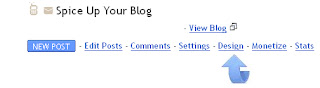
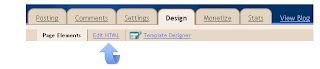
To add the +1 button to your blog, you’ll need to enable Share buttons on Blogger. To do this, go to Design > Page Elements on your Blogger dashboard, find the Blog posts area, click on Edit, and select the “Show Share Buttons” option. If you are already using Share buttons, the +1 button will automatically show up as a new share option.

Blogger Allow Share Buttons

You know i was never a fan of the default blogger share buttons but this does give them some merit now.

Using +1 Anywhere On All Blogs


You can also grab a standalone button to use on your blog by visiting Google +1 For Webmasters.

There are 4 sizes of button to choose from once you choose you generate two snippets of code.The script with the message "Place this tag in your head or just before your close body tag" goes directly before your blogs tag and the second code goes were you want the button to appear.

Add Google +1 Above Posts, Below Posts On Blogger


Lets Look At Some Places You Can Add The +1 Button On Blogger.

You can go to the +1 for webmasters page to Get The Google +1 Button Codes but i have them here also.

Add The Script

The script only needs to be added once no matter how many times you add the button.The script is the snippet with the message "Place this tag in your head or just before your close body tag" on the +1 for webmasters page.I also have it below :

Go to your blogs Design Page > Edit Html > Find the following piece of code in your blogs Html : (Click Ctrl and F for a search bar to help find the code - More Info)


Copy and paste the following code directly Above / Before then save your template.


That's it the script is added now choose a button and add it as shown.

Small +1 Button


Small Button Code


Medium +1 Button


Medium Button Code


Standard +1 Button


Standard Button Code


Tall +1 Button


Tall Button Code


Add To Blogger Sidebar

On Blogger go to your Design Page > Click Add A Gadget > Choose Html/Javascript and paste in the code for the +1 button then save.

Add Above Posts On Blogger

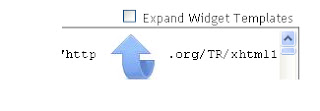
On Blogger Go To Design > Edit Html > Tick Expand Widget Templates.

Find the following piece of code in your blogs Html : (Click Ctrl and F for a search bar to help find the code - More Info)


Paste your +1 button code Directly Below
the save your template.

Add Below Posts On Blogger

On Blogger Go To Design > Edit Html > Tick Expand Widget Templates.

Find the following piece of code in your blogs Html : (Click Ctrl and F for a search bar to help find the code - More Info)


Paste Your +1 Button Code Directly Below

vendredi 27 mai 2011

The Complete Animated Sexy Social Bookmarks V3 For Blogger

The Sexy Bookmarks range, so called as the very first gadget had the 'Sharing Is Sexy' message is probably the most eye catching Social Sharing Widget available.On Spice Up Your Blog i have covered a few versions and even used the Arrow Messages to create my own unique versions.However in this post i have the complete sexy bookmarks range with the awesome accordion auto hide and all 8 arrow messages.

With the accordion effect one row of icons are visible and on hover the page drops to display 48 more sharing options, that's 56 in total.The icons themselves are sprites with a pop up effect, all making for a totally animated look using jQuery.Best of all by changing just one line in the code you can use any of the 8 messages.The message and icons are all transparent so work on any background color.We will be adding the sexy bookmarks gadget directly below all the posts on your blog.

Along with the steps I have a complete video tutorial walking you through the steps as I add the sharing buttons to a test blog.

Updated : 03/03/2014.

I have 2 demos showing the sexy bookmarks in action, one on a light background and one on a dark background.The demo has all 8 gadgets make sure to hover over the icons to see the drop down for the other icons.

Demo 1 - Light Background Sexy Bookmarks Demo

Demo 2 - Dark Background Sexy Bookmarks Demo

Very Cool Eh ! This version is the most complete i have seen for Blogger and thanks go to Harish from Way2Blogging.Harish also works with me on projects in the Hire Us section of Spice Up Your Blog.

Arrow Messages - The arrow messages available are Sharing Is Sexy, Sharing Is Caring, Sharing Is Caring With Hearts, Share The Love, Share The Wealth, Share And Enjoy, Share The Knowledge and even an arrow message in German !

Sharing Buttons - The Bookmarking Icons In The Gadget are for : Twitter, Facebook, Linkedin, Stumble Upon, Delicious, Digg, Google Buzz, Blogger, Yahoo Mail, Gmail, Google Bookmarks, Google Reader, Rss, Orkut, Design Bump, Reddit, Design Float, Friend Feed, Dzone, Web Blend, Propeller, Tumblr, Squidoo, Posterous, Technorati, Bebo, Hotmail, Blinklist, Blog Engage, Blog Marks, Box.Net, Current, Diigo, Ekudos, Evernote, Hacker News, Hives, Identica, Jumptags, Email, Meneame, Mister Wong, My Link Vault, Myspace, Netvibes, Netvouz, Newsvine, Ning, Ping FM, Plaxo, Plurk, Print Friendly, Slashdot, Sphinn, Techmeme and Tipd.

OK lets add it to your blog.

Add The V3 Complete Sexy Bookmarks Gadget To Your Blog


Step 1. In Your (New Design) Blogger Dashboard Click The Drop Down Menu For Your Blog > Choose Template > Then Edit Html > Now Proceed as shown in the video Below :

Step 2. Find the following piece of code in your blogs Html : (Click Ctrl and F for a search bar to help find the code - More Info)


Step 3. Copy and Paste the following code directly Above / Before

Note - If you previously added jQuery to your blog you can remove the line in yellow.


Step 4. Find the following piece of code in your blogs Html : (Click Ctrl and F for a search bar to help find the code - More Info)


- If you cant find this use
instead.

Step 5. Copy and Paste the following code Directly Below / Under

lundi 23 mai 2011

The New Advanced Share This Toolbar With Optional AdSense Unit

Over the last few years there has been a bit of a mini war between the top bookmarking widget services.Sites like Share This, Add This, Add To Any And more have been fighting for the top spot among users (Did you know the Add This Bookmark page is one of the few online with a Google Page Rank of 10/10).In my opinion over the last year Share This has been coming out on top.In The next few posts i will be showing you why with tutorials on their new Oath Bookmark buttons, Fixed Share widget with integrated AdSense and in this post the very cool toolbar also with optional integrated AdSense.
Click Here To View Full Post >>

Libellés : ,

vendredi 1 avril 2011

Amazing Animated Flying Twitter Bird Gadget For Blogger

animated twitter bird widget blogger
Guest Post - In this post Dasari Harish will show you how to have a stunning Twitter bird Fly around your blog pages, landing randomly in view of visitors to Share your posts and Follow you.

Twitter is one of the most popular Social networking sites in the world among Bloggers to promote their blogs.There are a number of twitter widgets, scripts and plugins available to integrate Twitter with your blog.Most of the icons, buttons or badges are stationary or a fixed floating Twitter gadgets.Now here i have a very cool unique Blogger Twitter widget, an actual Animated flying Twitter Bird that flies around your blog.

This Plugin is java script based and it will display an animated Twitter bird that settles on different places of your blogs visible area. If a you scroll the page, the bird will fly towards the visible part and settle in a new place and it takes random paths for each flight.When you place the cursor over the Twitter Bird "tweet this" and "follow me" links appear,through this the visitor can tweet the article or follow you.


On the demo page you will see the bird land as you scroll look out for the bird following you :

View Demo Button

Add The Flying Twitter Bird To Your Blog


There are Two types here is am giving.You can have the Bird on every page of your blog or just on the post pages..

1. Twitter Bird with tweet text has Post title and URL for all post pages Only.
2. Twitter Bird with tweet text has Current Page title and URL for all Blog pages.

Add Flying Twitter Bird To Post Pages Only

Step 1. In Your (New Design) Blogger Dashboard Click The Drop Down Menu For Your Blog > Choose Template > Then Edit Html > Now Proceed as shown in the video Below :

Step 2. Find the following piece of code in your blogs Html : (Click Ctrl and F for a search bar to help find the code - More Info)


3. Copy and paste the following ocde directly Above / Before


Important Note:-
Replace Your Twitter User Name Here! with your twitter user name.You add just the username not the entire URL of your Twitter profile.For example twitter.com/paulcrowepro , paulcrowepro is the username.


4. Save Your template And Check Out Your Twitter Bird.

Add Flying Twitter Bird To All Pages


Step 1. In Your (New Design) Blogger Dashboard Click The Drop Down Menu For Your Blog > Choose Template > Then Edit Html > Now Proceed as shown in the video Below :

Step 2. Find the following piece of code in your blogs Html : (Click Ctrl and F for a search bar to help find the code - More Info)


3. Copy and paste the following ocde directly Above / Before


Important Note:-
Replace Your Twitter User Name Here! with your twitter user name.You add just the username not the entire URL of your Twitter profile.For example twitter.com/paulcrowepro , paulcrowepro is the username.

4. Save Your template And Check Out Your Twitter Bird.

Final Words

I Hope you Liked this post and don't forget to share this article with your network. :).Thanks to Paul Crowe for inviting me to write a Guest post on his Great Blog.


By Guest Author -Dasari Harish is the Author of Way2Blogging.org, were he provides Blogger Gadgets and Tutorials. You can also follow Dasari Harish On Twitter.


Libellés : , , ,

mercredi 23 mars 2011

Text Wrapped Twitter And Facebook Buttons At Top Of Posts

Today as i was replying to the Emails from my contact form i got a bit of a surprise.One Email asked "I like to add Facebook share and tweet buttons to my blog post same like your blog (share and tweet buttons at the beginning of the post text). thanks:)".So i went to my list of posts page for Spice Up Your Blog to get the link to the tutorial for this to send back.Then i realised i have never actually covered it in a post.

I have showed how to have a Twitter counter at the top of your posts and even a Ttwitter and Facebook button in a fixed floating position, but not how to have the Twitter and Facebook Counter Buttons at the start of posts wrapped in text.It's actually quiet an easy tutorial..

So lets do it !

The Twitter button i will be using is the Most recent updated Twitter Button that includes a link to your Twitter Profile.You will see if you use the Twitter button on any of the posts in this blog the link you post on Twitter includes a link to my Twitter Profile and once you share the link you are given the option to follow me (If Your Not Already).So the button not only gets people sharing your posts but also gets you more followers.The facebook button is the standard counter button not the Like Button.

I am using these buttons at the time of writing the post but as you know I'm always changing so for future reference i have a live demo below.

Live Demo - Twitter And Facebook Button Demo

Add Twitter And Facebook Buttons To Blogger


Step 1. In Your Blogger Dashboard Click > Design > Edit Html > Tick The Expand Widget Templates Box.


Step 2. Find the following piece of code in your blogs Html : (Click Ctrl and F for a search bar to help find the code - More Info)


Step 3. Copy And Paste The Following Code Directly Before / Above